Settings
The Settings page lets you manage your workspace configuration and team access.
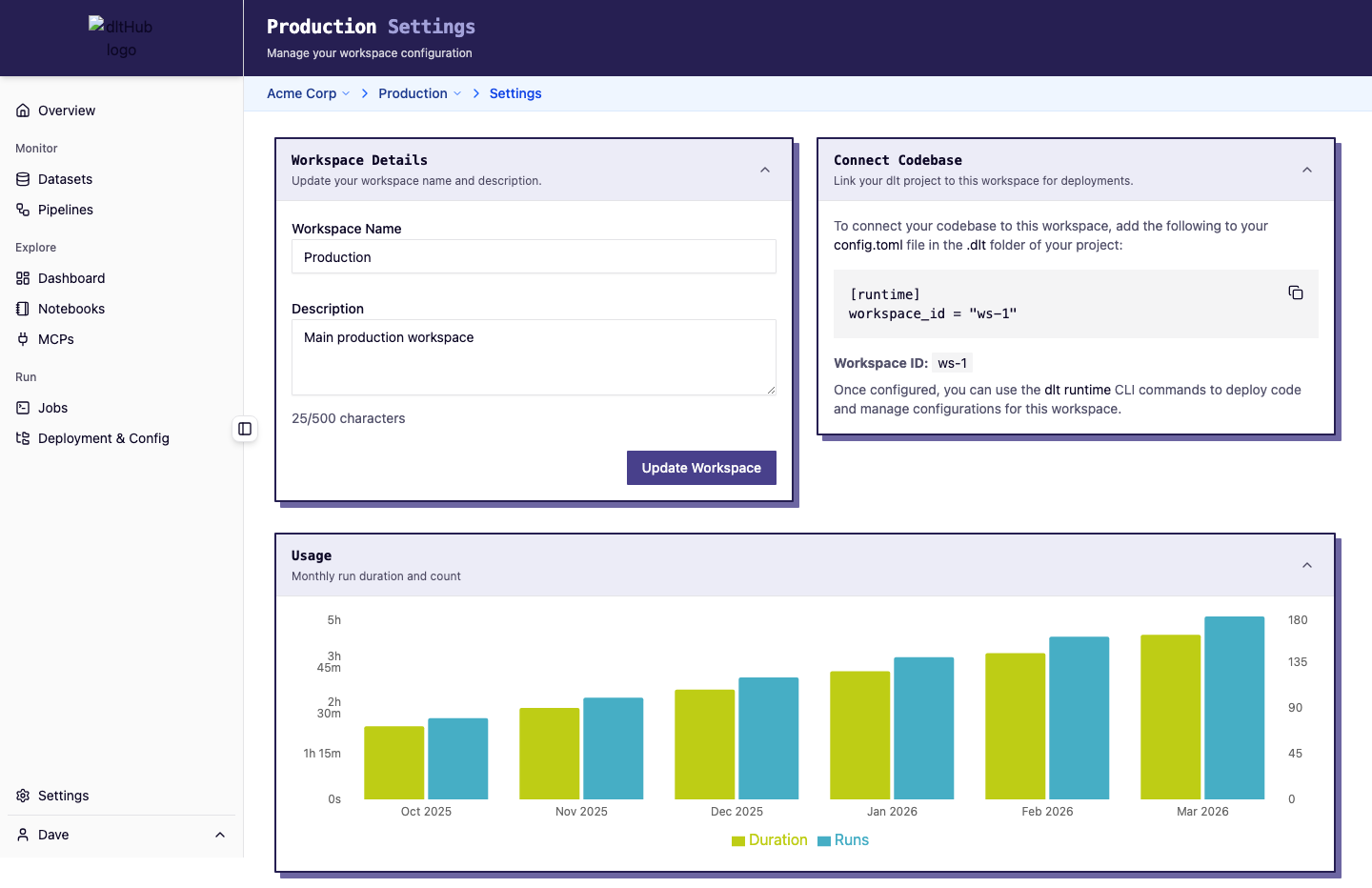
Workspace settings
Edit your workspace name and description. Changes are saved immediately. Editing requires the Owner role -- other roles see these fields as read-only.
Connection info
The settings page displays connection details for your workspace, useful for external tools and integrations.
Usage chart
A bar chart shows workspace usage over the last 6 months with monthly aggregated metrics.
Members
The members section shows who has access to this workspace and their roles:
| Role | Permissions |
|---|---|
| Owner | Full access: manage members, edit settings, start/cancel runs, manage schedules and public links, archive jobs |
| Viewer | Read-only access to all workspace data |
Managing members
Workspace owners can:
- Add members from the organization -- select a user and assign a workspace role
- Change roles -- promote or demote existing members
- Remove members -- revoke workspace access
Members must first belong to the organization before they can be added to a workspace.
See the Team Access guide for a walkthrough.
Organization settings
The organization settings page (accessible from the org-level navigation) provides:
- Organization name and description editing (owners only)
- Organization-level usage chart with aggregated metrics
- Organization members -- invite new members, assign org roles (Owner, Member), and remove members
Organization members can be added to any workspace within the organization.
User settings
Personal user-scoped settings live on your user settings page (accessible from the user menu in the sidebar).
API keys
API keys are personal, long-lived tokens that authenticate non-interactive clients on your behalf. They are scoped to your user account.
You can create a key by giving it a name and an expiry between 1 and 365 days. The plaintext value is shown only once at creation, so copy it immediately as it cannot be retrieved later. Existing keys can be deleted at any time, after which they can no longer authenticate.
Keys are prefixed with dlt_ and stored as SHA-256 hashes in the database. The plaintext value is never persisted.