Schedule a Pipeline
Set up automatic recurring runs for your pipelines using cron schedules.
Create a schedule
Use dlt runtime schedule with a script name and cron expression:
dlt runtime schedule my_pipeline.py "0 * * * *"    # every hour
dlt runtime schedule my_pipeline.py "0 0 * * *"    # daily at midnight
dlt runtime schedule my_pipeline.py "*/10 * * * *"  # every 10 minutes
dlt runtime schedule my_pipeline.py "0 9 * * 1-5"  # weekdays at 9am
This also deploys your latest code and configuration before activating the schedule.
Common cron patterns
| Expression | Description |
|---|---|
*/5 * * * * | Every 5 minutes |
*/10 * * * * | Every 10 minutes |
0 * * * * | Every hour |
0 */6 * * * | Every 6 hours |
0 0 * * * | Daily at midnight |
0 9 * * 1-5 | Weekdays at 9am |
0 0 * * 0 | Weekly on Sunday |
0 0 1 * * | First of every month |
Verify the schedule
From the CLI
dlt runtime job info my_pipeline.py
This shows the current schedule, next scheduled run, and last run details. See dlt runtime job info.
From the Web UI
The Jobs page shows the Schedule and Next Run columns for each job. Click a job to see the full schedule details on the job detail page.
Modify a schedule
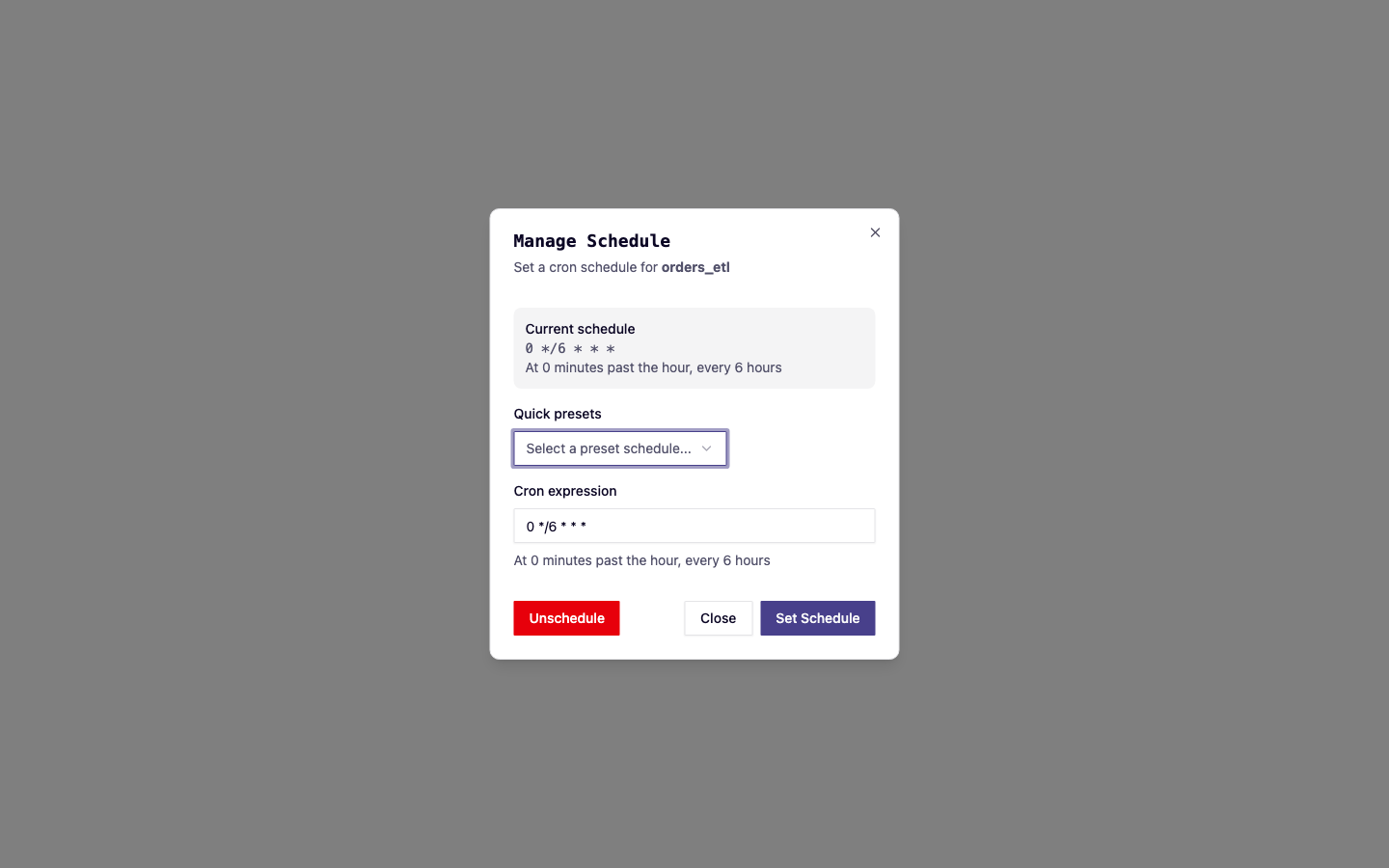
Run dlt runtime schedule again with the new cron expression:
dlt runtime schedule my_pipeline.py "0 */2 * * *" # change to every 2 hours
You can also manage schedules from the Jobs page using the context menu on any job row.
Remove a schedule
dlt runtime unschedule my_pipeline.py
This stops future scheduled runs. Any currently running execution will continue to completion.
Notes
- Scheduled runs use the latest deployed code and configuration. If you update your code with
dlt runtime deploy, the next scheduled run will use the new version. - Schedules run in the
prodprofile by default. See Manage Secrets for profile-specific configuration. - View scheduled run history on the Jobs page -- the Trigger column shows whether a run was manual or scheduled.