Publish and Share
Generate public links to share interactive notebooks and apps with anyone -- no authentication required.
Create a public link
Use dlt runtime publish:
dlt runtime publish fruitshop_notebook.py
This generates a unique URL that anyone can use to view the notebook. The URL is displayed in the terminal output.
You can also manage public links from the Jobs page using the context menu on any interactive job.
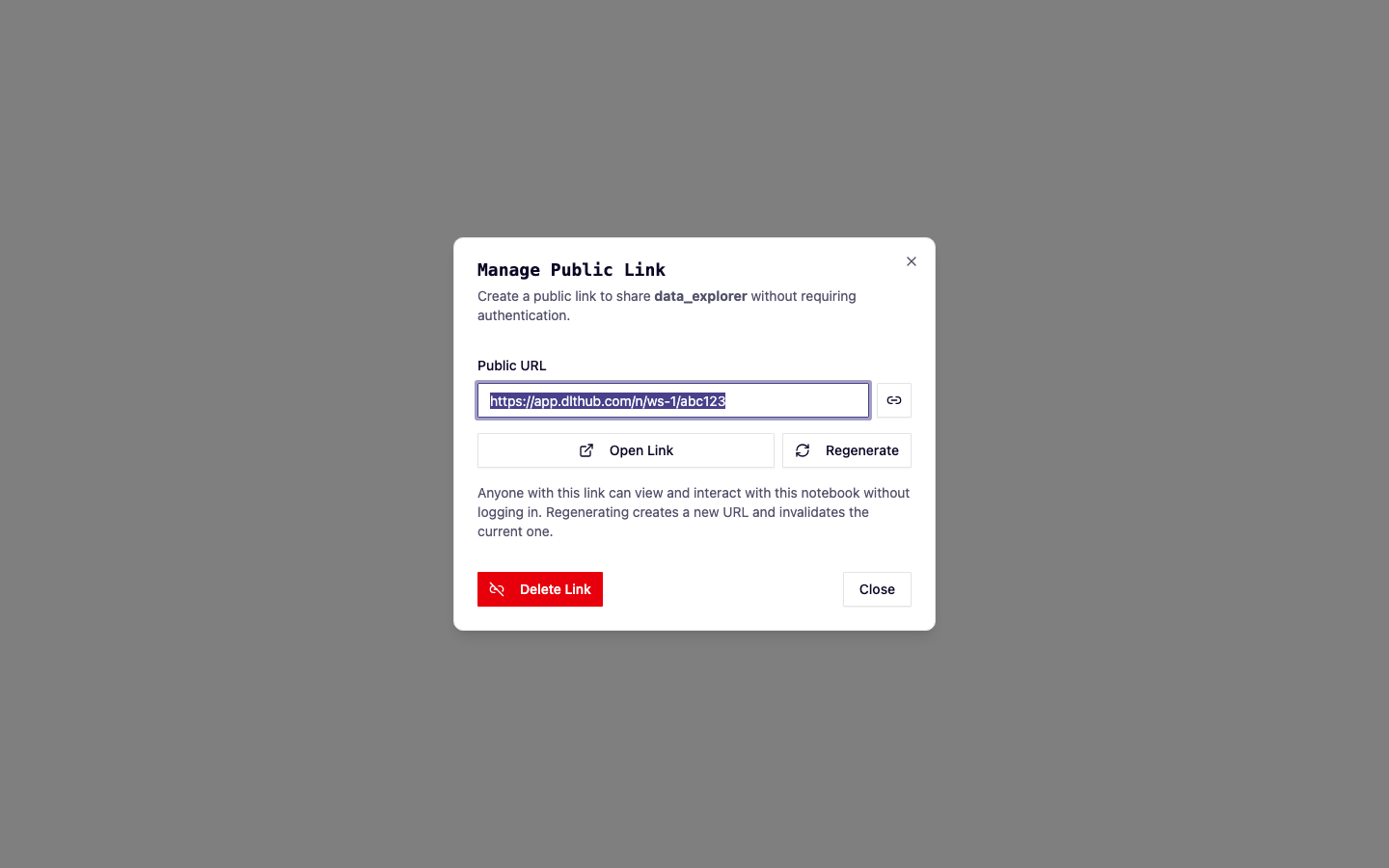
What public users see
Public links open a read-only view of the notebook or app:
- Full notebook interface (Marimo) or app (Streamlit)
- dltHub branding header with the notebook name
- No sidebar, navigation, or access to other workspace resources
The app must be running for the public link to work. If the notebook is stopped, visitors see a status page.
Revoke a public link
dlt runtime unpublish fruitshop_notebook.py
This immediately invalidates the public URL. Anyone with the old link will no longer be able to access the notebook.
Security considerations
- Public links provide read-only access to the specific notebook or app
- No authentication is required -- anyone with the link can view the content
- Public links do not expose other workspace resources, jobs, or settings
- Interactive apps using the
accessprofile should have read-only database credentials. See Manage Secrets. - Revoke links promptly when sharing is no longer needed
Check public link status
From the Jobs page, the Public Link column shows whether a job has an active public link. The job detail page also shows the public link status.